

What are Student Portfolios and how to use them?

student portfolios news

Table of Contents

What are student portfolios?

Student Portfolios keep families up to date on their child’s learning progress by providing a window into real examples of student work. Portfolios offer an additional way for teachers to connect with families, share positive learning updates, and highlight student progress in a clear, personal way.

The Student Portfolio feature focuses on positive and constructive learning updates.

Teachers add a portfolio update by selecting the student’s name and creating an update that may include a description, images, videos, and documents. They can assign a special recognition such as “Strong Progress”, “Quality Work”, or “Active Participation.”

Parents are notified of updates by email and app push notifications, and they can leave comments and questions for teachers to review and respond to. Ultimately, portfolios are intended to provide a shared space for parents and teachers to take a moment to update students’ learning progress and celebrate it together.

divider line

How do I add a student portfolio?

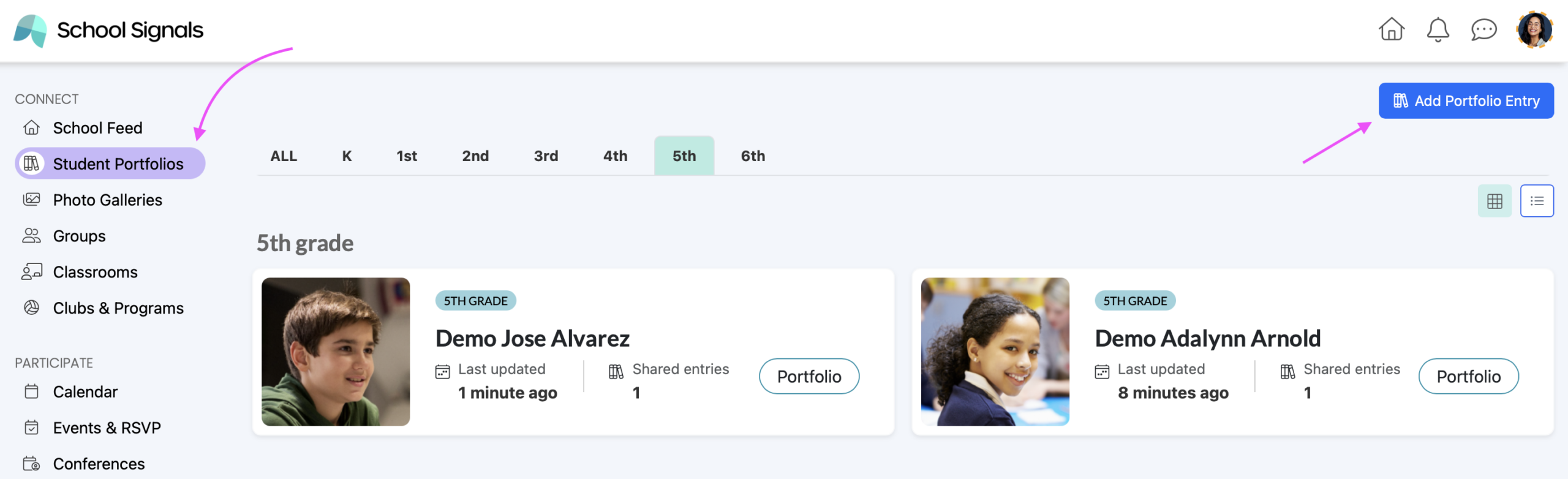
Locate the Add Portfolio Entry Button

  • Go to the Student Portfolios page.
  • Click Add Portfolio Entry.
  • Alternatively, click the “Portfolio” button to view a student’s portfolio page that has already been created. You can add a portfolio entry for the student from the detail page.
student portfolio UI

  • You can also find ‘Portfolio” button for each student in the Classroom’s directory, under the Students tab.


Add a New Portfolio

  • Type in the student’s name. Select the student’s name from the drop-down list that appears as you begin typing the name.
  • Select the recognition type from the drop-down options. This feature is optional.
  • Add a Title for the portfolio entry.
  • Provide a description for the field “Share a student learning update.”
  • Click the Photos, Videos, and Documents buttons to add relevant media content and documentation.
  • Click Share.
  • The portfolio entry is created immediately. The student’s parents are notified by email and app push, according to their individual notification preferences.

Note: If the student already has portfolio entries, you can go to the student’s portfolio page and add the entry. In this case, you do not need to type in the student’s name.


Add a Portfolio Entry to Already Created Portfolio

Follow the steps above, or click the “Portfolio” button to view a student’s portfolio page that has already been created. You can add a portfolio entry for the student from the detail page.

divider line

Who can add student portfolios?

  • School Admins can add student portfolios.
  • Teachers can add student portfolios for students in the grade levels they are assigned to teach.
  • Parents and students do not add student portfolios.
divider line

How do parents find their child’s student portfolio?

Student Portfolios Menu Link

When a student portfolio is made available to the student, a “Student Portfolios” menu link appears in the parent’s menu. The parent only sees this link if their child has a portfolio — there is no need to send the parent to an empty page.

How do parents know when a student portfolio entry has been added for their child?

Parents receive notifications by email and app push on new portfolio entries. By default, notifications are set to ‘immediately,’ but the parent can also set them to ‘daily’ or ‘don’t notify.’ The notification setting is bundled with the Group and Classroom notifications section.

How Can Teachers and Admins Tell If Parents Have Been Notified?

The teacher who made the entry and the School Admin have access to the delivery report. Click on the portfolio entry’s three-dot menu and select ‘Delivery Report.’